 Free IPTV Playlists
An Android box can mean an Android TV device or a generic box running tablet-style Android. Those interfaces have different store availability and remote-control behaviour. Identify the platform before choosing an app. This guide uses your own authorized media source and free playback tools; it does not supply channels, subscriptions, or access credentials.
Visual walkthrough: Android box input, playback and restart tests
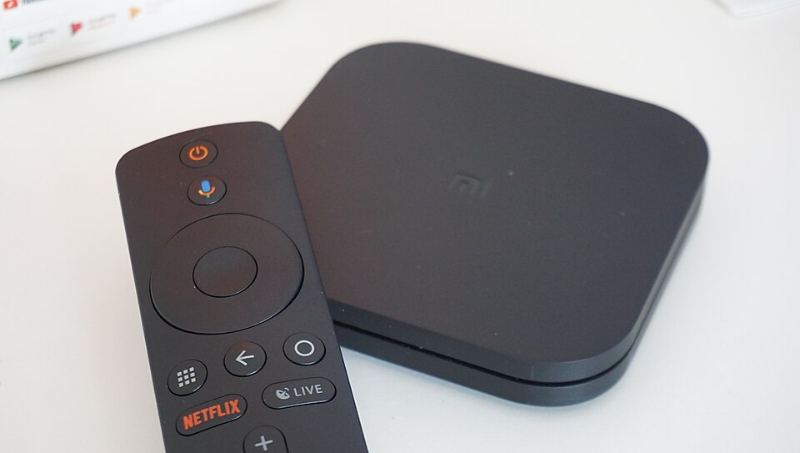
A generic Android box may use a phone/tablet interface instead of Android TV. Prepare the supplied remote, a supported pointer if the manufacturer requires one, and an authorized source. Do not assume the shape of the box establishes TV certification.
Follow the numbered actions and compare the expected result before continuing. In each original diagram, highlights 1–3 mean task, input/check, and result; they are not application buttons.
Identify the platform and test the input method
Action. Read the box model and Android version in its device information, then compare the manufacturer's description for Android TV or Google TV certification. If it is tablet-style Android, confirm which input methods the box supports. Before entering any private source, test selecting a field, typing a harmless local label and returning to the previous view with the remote or supported pointer. Check network connectivity and enough free storage for the official app.
Expected result. You know whether to expect TV-style or touch-oriented controls, and you can select, type and go back. If a required button cannot be reached, solve the input/compatibility problem before loading a playlist; reinstalling the same mobile UI does not turn it into a TV UI.
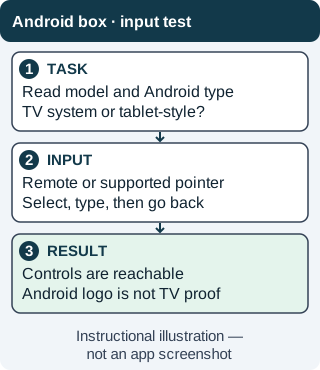
This small input test prevents a common generic-box failure: an installed app whose controls cannot be operated from the sofa. Instructional illustration — not an app screenshot. Original WispClub workflow diagram, CC BY-SA 4.0. Install official VLC and choose URL or local file
Action. Start at VideoLAN's Android download page and follow the official route appropriate to this box. Check the publisher and device requirements before installing. Open VLC and choose its network-stream function for your authorized media/M3U URL; labels vary across TV and tablet-style interfaces. If using a supported M3U file instead, place it in accessible storage and open it using the file controls. Grant only the storage access needed for that file. A downloaded M3U still needs reachable media sources.
Expected result. The app opens the direct stream or offers usable playlist entries. If storage is not visible, check file access and the chosen location; if a URL fails, check the complete URL and format. Do not install a modified bundle that promises unlocked channels.
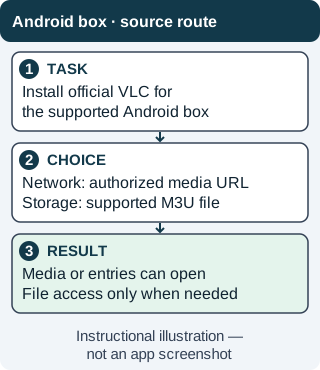
The input source determines the route. Network entry and local-file access are alternatives; neither provides viewing rights. Instructional illustration — not an app screenshot. Original WispClub workflow diagram, CC BY-SA 4.0. Verify playback survives leaving and reopening the app
Action. Select one authorized entry and check picture and sound, then return and test a second entry. Close playback and reopen the player using the box's supported controls. If your version offers a way to reopen or save the source privately, test that route; otherwise re-enter the source rather than assuming it was saved. Check that the remote or pointer can still return to the list. If video works only on a computer, compare the box's connection and codec support before resetting it.
Expected result. Two entries play and the intended user can reopen the source without exposing it publicly. If the box launches but navigation or source recovery fails, the setup is not yet practical for TV use. Do not mistake a media-format limitation for a missing subscription to the player.
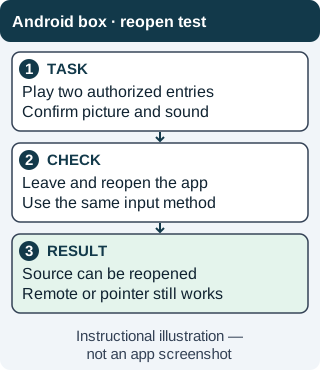
A useful living-room setup must remain operable after the first successful stream, not just during installation. Instructional illustration — not an app screenshot. Original WispClub workflow diagram, CC BY-SA 4.0. Use Kodi for a guide only if the box supports it
Action. If you need schedule browsing, check Kodi's supported build and official installation route for the box. Enable IPTV Simple Client following its version-specific documentation. Configure your M3U and matching XMLTV as separate inputs, save and reload. Open a channel in TV, then inspect its entry in Guide. Check the box date and time zone before changing offsets. TiviMate is not guaranteed on a generic box merely because it runs Android; verify both app compatibility and input usability first.
Expected result. The channel plays and the matching guide time is correct. A blank guide needs XMLTV/channel-ID checks, not a new stream address if video already works. If there is no supported guide app, retain the known-working playback route or evaluate compatible hardware without assuming a paid app fixes the box.
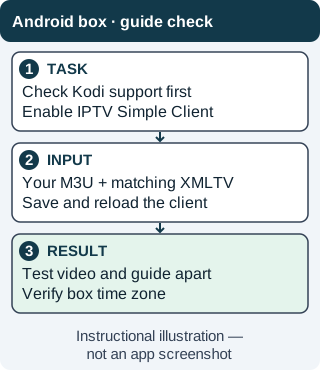
A separate guide route has its own compatibility and data requirements. VLC remains a playback-first option. Instructional illustration — not an app screenshot. Original WispClub workflow diagram, CC BY-SA 4.0.
Check your box and install a playback app
- Identify the system. Read the model and Android version in the device settings. Check the manufacturer’s description for Android TV or Google TV. Do not infer TV certification from an Android logo or the shape of the box. Tablet-style Android may require a pointer for some app controls.
- Confirm practical compatibility. Check available storage, network access, and the app listing for that exact device. Test whether your remote can select fields and navigate menus. A mobile interface that opens successfully may still be awkward on a television.
- Install official VLC. Use VideoLAN’s Android download page and its appropriate installation route. VLC is free. Avoid modified packages or bundles claiming to unlock channels; installing a player does not create permission to view anything.
- Load your authorized source. Open VLC’s network-stream option, whose label varies by interface, and enter the full stream or M3U URL. For a local playlist, open a supported M3U file from accessible storage. Grant file access only when it is needed for your chosen workflow.
- Verify real playback. Select one entry, confirm sound and picture, and test a second entry. Then close and reopen the player. Save your source privately if supported, but do not expose private playlist addresses in screenshots or shared device notes.
Configure a programme guide only if you need one
VLC is playback-first, not an XMLTV guide. An M3U holds media locations; XMLTV supplies schedule information. If you want a TV-style guide on compatible hardware, Kodi offers a free alternative with a separate PVR client.
- Install Kodi and its client. Follow the official download route for your device. Open Add-ons, Install from repository, then PVR clients, and install or enable IPTV Simple Client. Consult the official client documentation; menu wording varies by version.
- Set both sources. Configure the M3U URL or file, then the separate EPG XMLTV URL or file. Ensure the playlist’s channel identifiers match the schedule. Save the settings and reload the client or restart Kodi.
- Open TV and Guide. Check channel playback and schedule display separately. Confirm the box’s time zone before changing guide offsets. Missing schedule data cannot be fixed by changing a working stream address.
TiviMate is an optional TV-focused player, not a guaranteed fit for every generic Android box. On supported hardware, add your own playlist and assign its EPG. Some features may cost money; payment is for app functionality, not channels.
Troubleshooting
The app cannot be controlled with the remote
Check whether you installed a mobile interface on tablet-style Android. Use an input method supported by the box, or choose a verified TV-compatible setup. Repeatedly reinstalling the same app will not change its interface design.
The playlist is visible but streams fail
Check for an incomplete URL and test the source on a computer. If multiple devices fail, investigate the source rather than the box. If only the box fails, compare network stability and supported media formats.
The guide remains blank
Confirm XMLTV availability, matching channel IDs, and successful refresh. VLC will not gain a guide simply because an EPG address exists.
FAQ
Is every Android box an Android TV device?
No. Some run tablet-style Android with different app and input expectations.
Must I buy a player first?
No. Start with compatible free VLC or Kodi playback before considering optional paid features.

