 Free IPTV Playlists
You can use an iPhone or iPad to test an authorized IPTV stream without buying a specialist player first. VLC provides a free playback route, but it is not a full XMLTV programme-guide app. Have your permitted stream or M3U source ready and start on a reliable network. This guide supplies no channels or viewing access.
Visual walkthrough: iPhone and iPad network and local-file entry points
Start on Wi-Fi with official VLC and a media source you are authorized to use. The two VideoLAN iOS 3.X screenshots below show entry points only; they do not prove that every M3U format or stream is supported by your installed version.
Follow the numbered actions and compare the expected result before continuing. In each original diagram, highlights 1–3 mean task, input/check, and result; they are not application buttons.
Install VLC and separate media from account and guide data
Action. Use VideoLAN's iOS download page and its App Store link, then check the listing's supported iPhone/iPad and system versions. Install and launch the app without adding configuration profiles or unrelated software. Prepare one authorized direct media URL for the initial test, or a playlist explicitly supported by the installed release. Keep a local M3U intact if you have one. XMLTV, a provider website and a portal address are not substitutes for a playable media URL.
Expected result. Official VLC opens and you have identified either a media URL or a supported local-file route. If the provider only supplies an unsupported login method, ask for a compatible authorized option; buying another app without checking input support may not help.
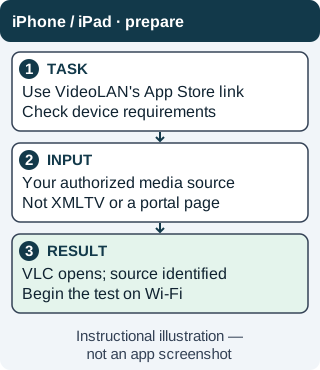
Choose the source type before choosing a VLC entry point. Start with a direct authorized stream when playlist compatibility is uncertain. Instructional illustration — not an app screenshot. Original WispClub workflow diagram, CC BY-SA 4.0. Use Network to reach the stream entry point
Action. In the documented iOS 3.X interface, tap Network in the bottom navigation, then Open Network Stream. Paste your complete authorized media URL in the stream-entry view and start it using the controls in your installed version. The screenshot shows the entry row, not the subsequent URL dialog or a playback result. Compare against the official iOS documentation if the layout differs. Never paste the example sharing address visible in the documentation image as your content source.
Expected result. A compatible direct stream begins playing, or a supported playlist presents entries. Check for picture and sound, not just a successful paste. If it fails, check whether the URL is media rather than a webpage, then compare another authorized direct stream. This Network screenshot is not evidence of universal M3U support.
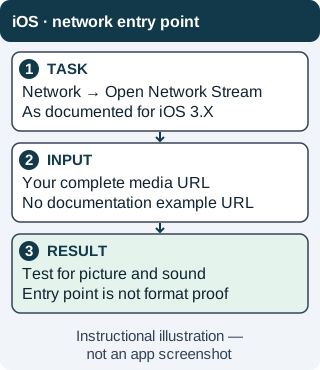
The action starts from the Network tab. The separate real screenshot provides UI context; the outcome still needs testing with your own source. Instructional illustration — not an app screenshot. Original WispClub workflow diagram, CC BY-SA 4.0. 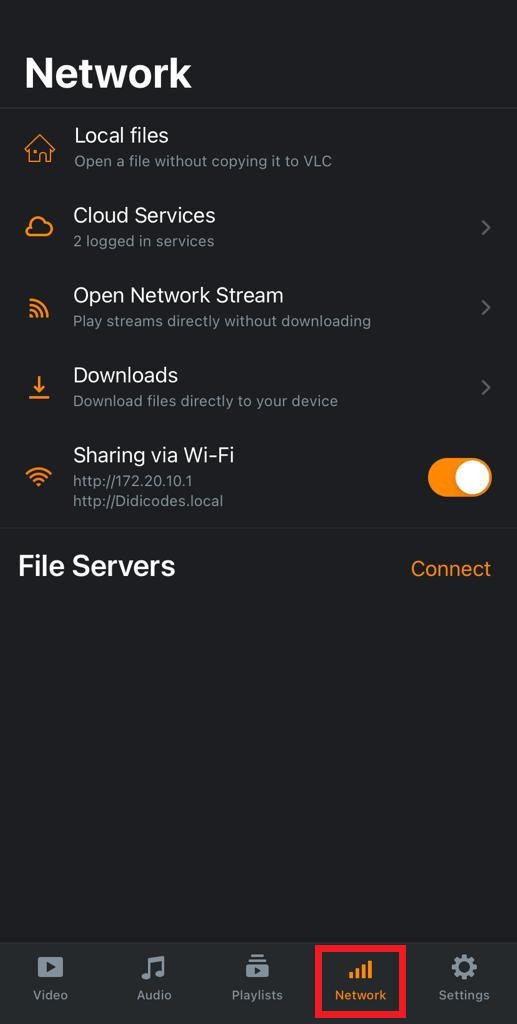
Actual VideoLAN VLC iOS 3.X documentation screenshot: the existing red box marks Network; Open Network Stream is visible above Downloads. It shows an entry point, not the URL-entry dialog or proof of M3U playback. The pictured Sharing via Wi-Fi toggle/address is unrelated to this workflow; do not copy it or enable sharing for this test. By the VideoLAN Documentation Team, original image from the official instructions. CC BY-SA 4.0 or later per VideoLAN documentation licensing; original image unmodified, displayed responsively. Interface labels may differ by release. Use Local files only for an available, supported file
Action. Skip this step if the network route is sufficient. Make a permitted media file, or an M3U supported by your installed version, available in the device's file storage. In the documented iOS 3.X interface, open Network and tap Local files, then choose the accessible file using the device's file controls. The screenshot highlights where that route starts; it does not show an M3U being selected or played. Retain the original file and grant only access needed for the selected location.
Expected result. A supported file opens, or a supported playlist exposes playable entries. An M3U is a list of locations, so online entries still require network access. If the file is not offered or will not open, verify format support and location; do not rename XMLTV or a webpage to .m3u to force it.
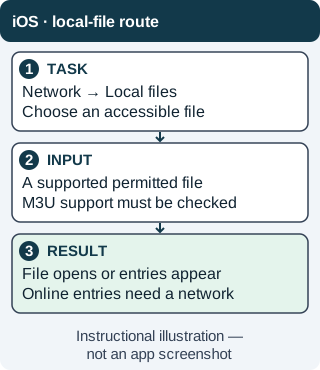
Local files is a documented entry point, not a blanket compatibility guarantee. The local route is optional, not an extra requirement after URL playback. Instructional illustration — not an app screenshot. Original WispClub workflow diagram, CC BY-SA 4.0. 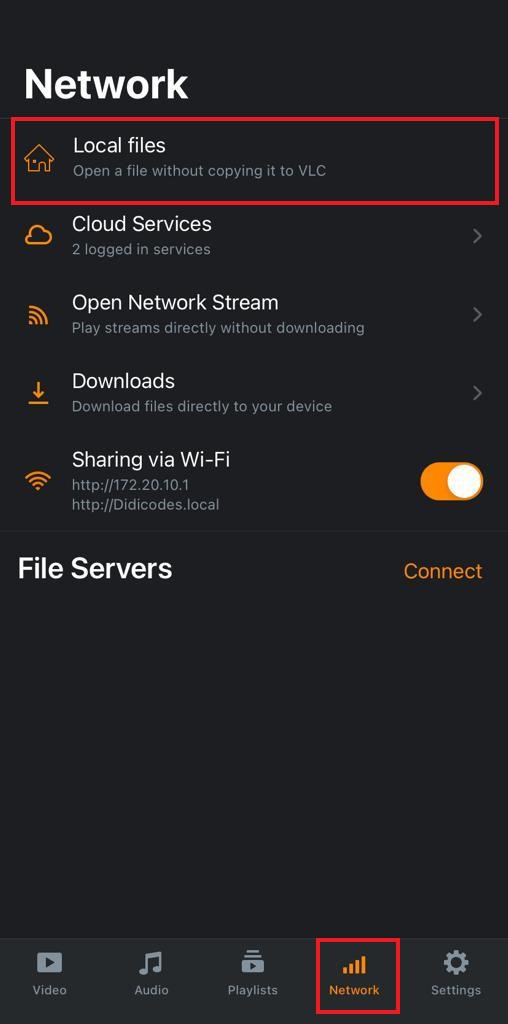
Actual VideoLAN VLC iOS 3.X documentation screenshot: existing red boxes mark Network and Local files. It shows the local-file entry point, not a file picker, imported M3U or successful playback. The unrelated sharing address and enabled toggle are part of the source image, not instructions to enable sharing. By the VideoLAN Documentation Team, original image from the official instructions. CC BY-SA 4.0 or later per VideoLAN documentation licensing; original image unmodified, displayed responsively. Interface labels may differ by release. Test mobile behavior before relying on it away from home
Action. Check two authorized entries if your playlist presents them, rotate the phone or tablet and verify volume. Briefly switch away and return, then test screen-lock behavior only if you need it. Compare Wi-Fi with cellular use only after checking your data allowance. Do not assume background audio, AirPlay, casting or seeking works for every stream and receiving device. Save the source privately only through functionality actually available in your installed version.
Expected result. You know how playback behaves on this device and connection. If interruption recovery fails, return to stable Wi-Fi and compare a known-working authorized stream before changing system settings. A schedule grid requires a separate app with explicit XMLTV support; VLC's network and file entry points do not add an EPG.
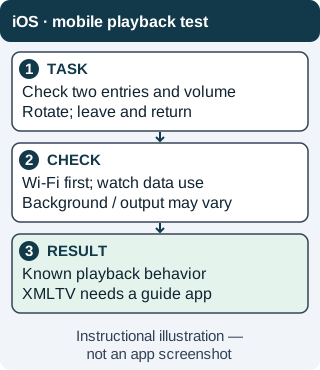
Test the conditions you actually intend to use. Successful foreground playback is not proof of casting or uninterrupted background playback. Instructional illustration — not an app screenshot. Original WispClub workflow diagram, CC BY-SA 4.0.
Install VLC and open your media source
- Check the official installation route. Open VideoLAN’s VLC for iOS page and follow its App Store link. Check the listing’s device and operating-system requirements. Avoid lookalike apps, configuration profiles, and websites promising channels with an installation.
- Prepare the right kind of address. Use a direct media-stream URL or an M3U playlist supplied for your authorized use. A website login page, XMLTV schedule, or portal address is not interchangeable with a playable stream. Copy the complete address without surrounding spaces.
- Open a network stream. Launch VLC and look under Network for Open Network Stream; wording can vary by release. Paste the source address and start playback. Use the official iOS user guide if your interface differs.
- Use a local playlist when appropriate. If your source is a supported local M3U file, make it available to VLC through the device’s file-opening or sharing controls. Keep the original file intact while testing. A playlist file contains locations; it does not contain the video itself.
- Confirm playback before saving anything. Test one entry for picture and sound, then try another if the playlist exposes multiple items. Playlist presentation can differ from a dedicated TV player. Save or reuse the source only through controls your installed version provides.
- Check the viewing conditions. Test on Wi-Fi before relying on mobile data. Live video can use substantial data, and background behaviour varies with the app and system. Verify rotation, volume, and playback recovery after briefly switching away from the app.
Understand EPG and payment limits
An M3U tells the player where media is located. XMLTV describes programmes and times. VLC is playback-first and does not turn an XMLTV address into a browsable television guide. If a schedule grid is essential, evaluate an iOS app that explicitly supports your playlist format and XMLTV source; do not assume every IPTV-branded app does.
Check device requirements, privacy practices, and payment terms before choosing an alternative. A paid download or in-app feature is payment for the software, not for channels or permission to access them. No paid app is required for the VLC steps above.
Troubleshooting
The address opens nothing
Check that you copied a media or playlist URL rather than a webpage. Compare another authorized stream, then test the same source in desktop VLC. A source requiring an unsupported sign-in method will not become compatible by repeatedly pasting its webpage address.
Playback stops or buffers
Return to a stable Wi-Fi connection and compare a lower-quality stream if available. Check whether the problem affects every entry or only one. Do not publish the complete playlist URL when requesting help; it may contain private access information.
There is sound but no picture, or no TV output
Media-format support and output behaviour vary. Test another supported source before blaming the playlist file. Do not assume AirPlay, casting, background audio, or protected-stream playback works for every source and receiving device.
FAQ
Can I use these steps on both iPhone and iPad?
Yes, where the official VLC listing supports the device and system version. Layout and labels may differ.
Does opening an M3U add a programme guide?
No. Playlist playback and XMLTV schedule display are separate capabilities.

