 Free IPTV Playlists
A Windows PC or Mac is useful for watching an authorized IPTV source and checking whether a playlist works before configuring a television. VLC offers free playback; Kodi adds a separate route for a television-style guide. Prepare your permitted M3U or direct stream and, for guide display, a matching XMLTV source. No channels or access are supplied.
Visual walkthrough: Windows and macOS source-to-playback checks
Use a supported Windows PC or Mac, official VLC and an authorized media URL or playlist. The real URL-dialog screenshot is from VideoLAN's desktop VLC 3.0 documentation; it is not presented as a macOS screenshot or as evidence of every current release's layout.
Follow the numbered actions and compare the expected result before continuing. In each original diagram, highlights 1–3 mean task, input/check, and result; they are not application buttons.
Install VLC and identify the input type
Action. Use VideoLAN's official desktop download page, choose the build for Windows or macOS and confirm supported system requirements before installing. Launch VLC. Prepare a complete authorized direct-stream URL or supported M3U URL/file. Keep the original source private and distinguish it from XMLTV, a provider website or a portal connection. For an initial diagnostic test, prefer a known-working authorized direct stream when possible; a long playlist can contain unrelated failures.
Expected result. VLC opens on the computer and you know whether to use its network or file-opening route. There is no requirement to purchase a player subscription for this VLC test, and installing VLC supplies no viewing access.
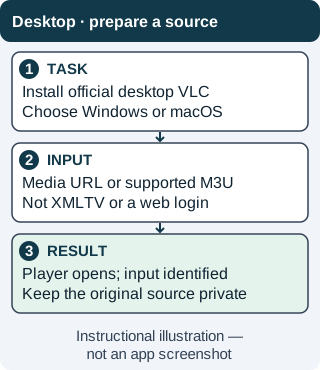
Choose the platform build and media input first. An account webpage cannot be treated as a playable network stream. Instructional illustration — not an app screenshot. Original WispClub workflow diagram, CC BY-SA 4.0. Open the correct platform menu and enter the source
Action. On Windows, choose Media, then Open Network Stream. On macOS, choose File, then Open Network. Paste the complete authorized source into the URL field and start playback using the control offered by that platform's dialog. The desktop 3.0 screenshot below shows the Network tab, the empty URL field and the Play control in that documented dialog; its appearance is not the macOS interface. If you have a supported local M3U instead, use VLC's file-opening controls rather than entering a local filename as a network URL.
Expected result. A direct stream starts or a supported playlist loads entries. The empty example field in the screenshot is where a permitted source belongs; the protocol examples shown beneath it are documentation hints, not a channel list or sources this guide asks you to play.
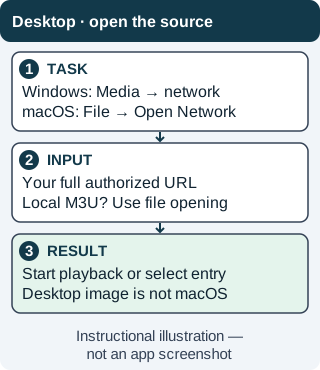
Use the full menu names in the action above; this diagram summarizes the two platform branches without pretending their dialogs are identical. Instructional illustration — not an app screenshot. Original WispClub workflow diagram, CC BY-SA 4.0. 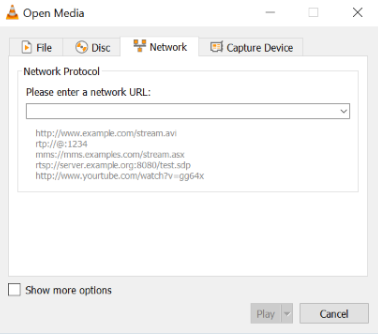
Actual VideoLAN desktop VLC 3.0 documentation screenshot: Network tab, empty URL field and Play control. This is not a macOS capture. The example protocols beneath the field are documentation hints, not viewing sources. By the VideoLAN Documentation Team, original image from the official instructions. CC BY-SA 4.0 or later per VideoLAN documentation licensing; original image unmodified, displayed responsively. Interface labels may differ by release. Inspect the playlist and compare real playback
Action. If a playlist loads, open VLC's playlist view and select an entry. Watch for moving video and listen for audio, then test a second authorized entry. Check volume and the selected audio track if necessary. Close the first stream before comparing the same source on another device if your account limits simultaneous playback. Save source details only in a private location and redact the whole sensitive URL from support screenshots, not just the visible account name.
Expected result. At least two entries have an observed playback result. If both fail on multiple devices, check the source administrator, permissions and expiry rather than buying another player. If only the computer fails, compare network stability, app version and media-format support. A loaded list is not proof that its contents are reachable.
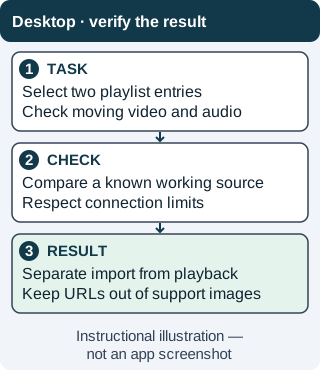
A useful cross-device test changes one factor at a time. It should not exceed the account's allowed simultaneous connections. Instructional illustration — not an app screenshot. Original WispClub workflow diagram, CC BY-SA 4.0. Use Kodi for the optional XMLTV programme guide
Action. If you need a schedule grid, install a supported Windows or macOS Kodi build from its official downloads page. Following the linked IPTV Simple Client documentation, install or enable the client and configure the M3U URL/file separately from the EPG XMLTV URL/file. Save and reload or restart as documented. Open TV and Guide, test one channel and compare its schedule with the computer's time zone. Verify matching channel identifiers if programme rows are empty.
Expected result. The chosen channel plays and the guide shows matching programme information at the correct local time. Diagnose guide access, refresh and ID matching separately from media access. VLC remains useful for playback tests but cannot validate the XMLTV schedule by displaying a television guide.
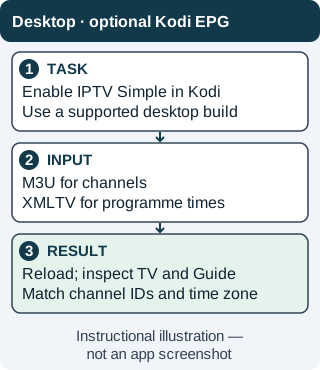
Kodi is a separate guide-capable route, not an XMLTV feature hidden in VLC's network dialog. Instructional illustration — not an app screenshot. Original WispClub workflow diagram, CC BY-SA 4.0.
Open your stream in desktop VLC
- Install the official player. Use VideoLAN’s VLC website and select the download appropriate to your operating system. Check the supported system version. Avoid third-party installers that bundle unrelated software or promise channels.
- Use the correct menu. On Windows, choose Media, then Open Network Stream. On macOS, choose File, then Open Network. The official network-stream documentation explains the desktop workflow.
- Enter your authorized source. Paste the complete media or M3U URL and start playback. If you have a supported local M3U, open it using VLC’s file-opening controls instead. A downloaded playlist may still reference online streams and does not contain the video itself.
- Inspect playlist entries. Open the playlist view if needed and select an item. Test picture and sound, then compare another entry. Do not treat a populated list as proof that every listed source remains available.
- Keep the test private. Avoid sharing screenshots that expose source addresses or private URL parameters. Save the playlist only where other users of the computer cannot casually access sensitive links. Do not upload it to a random online checker.
Set up an XMLTV guide with Kodi
VLC is playback-first, not an XMLTV programme-guide app. M3U supplies media locations, while XMLTV supplies programme names and times. If you need both playback and schedule browsing, use a guide-capable setup such as free Kodi with IPTV Simple Client.
- Install Kodi. Choose the appropriate Windows or macOS version from Kodi’s official download page. Review the requirements rather than assuming an older computer supports the newest release.
- Install or enable IPTV Simple. Open Add-ons, Install from repository, then PVR clients. Select IPTV Simple Client. Menu wording varies by Kodi version; consult the official client documentation. Linux packaging may differ if you later use another platform.
- Configure the two inputs. Set the M3U URL or file and the separate EPG XMLTV URL or file in the client settings. Make sure the playlist and guide use matching channel identifiers. Save the configuration.
- Reload and check the guide. Reload the client or restart Kodi as needed, then open TV and Guide. Test a stream and inspect its schedule separately. Check the computer’s date and time zone if programme times appear shifted.
Troubleshooting and payment checks
The source does not open
Verify the full URL and compare a second authorized source. A portal, sign-in webpage, or XMLTV file is not a direct stream. If a source fails on multiple devices, check its availability with the authorized source administrator rather than buying another player.
Playback buffers or lacks audio
Try a stable wired connection where supported, check the selected audio track, and compare another stream. Update through the official app route. Codec support and source quality can differ even when playlist import succeeds.
The guide is blank
Check the XMLTV location, refresh status, and channel-ID matching. VLC will not display the schedule. Neither VLC nor Kodi requires a player payment for the workflows described here; unrelated paid software does not include channels automatically.
FAQ
Are Windows and Mac menu names identical?
No. Use Media and Open Network Stream on Windows, but File and Open Network on macOS.
Does a working guide prove the stream works?
No. Schedule data and media playback must be tested independently.

