 Free IPTV Playlists
The best IPTV app is the one that supports your exact device, authorized source, and preferred controls. There is no universal winner. Start with free playback where supported, then add guide features if needed. This guide compares setup routes, not channel packages, and supplies no subscriptions, credentials, or viewing access.
Visual walkthrough: Choose an app by platform, input and test result
Work through these four decisions before paying for a player. Keep a private note of your exact device, authorized source format, required controls and whether you need an EPG. The result is a verified setup choice, not a ranking that claims one app fits everything.
Follow the numbered actions and compare the expected result before continuing. In each original diagram, highlights 1–3 mean task, input/check, and result; they are not application buttons.
Build a shortlist from the exact platform
Action. Read the device model and OS. For Windows, macOS, iOS or Android, check the appropriate official VLC listing for basic playback. For Android TV/Google TV, also consider a supported Kodi build and, if needed, the TV-focused TiviMate route. For a tablet-style Android box, test input usability. For Samsung Tizen or LG webOS, check native-store options such as the documented Smart IPTV or SS IPTV routes. Separate Fire OS from Vega; a Vega-native installation of VLC, Kodi or TiviMate is not verified here.
Expected result. Your shortlist contains only apps whose official route supports the exact platform and input method. If no listing is available, stop or evaluate supported external hardware. Android APKs are not a universal solution for Samsung, LG or Vega.
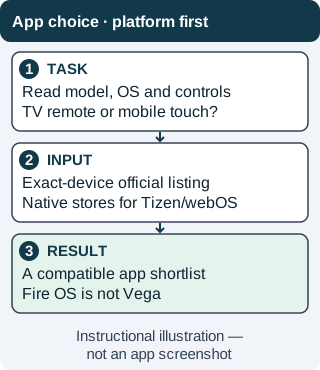
Compatibility removes unsuitable apps before price or popularity enters the decision. Confirm the listing on the actual device. Instructional illustration — not an app screenshot. Original WispClub workflow diagram, CC BY-SA 4.0. Match the source to a documented input
Action. Ask which authorized source format you actually have. A direct media URL or M3U belongs in a compatible stream/playlist workflow. XMLTV belongs only in an EPG-capable workflow. Xtream login details require an app that explicitly supports that account method; a Stalker portal requires its own supported portal/device setup. Do not convert a login webpage into a media URL by guessing parameters. If your provider does not offer a format supported by the shortlisted app, request a compatible authorized option.
Expected result. You can name the supported input and the information needed, without exposing it. No copied credentials or borrowed MAC address is part of this process. If format compatibility is unknown, do not purchase the player on the assumption it will accept every source.
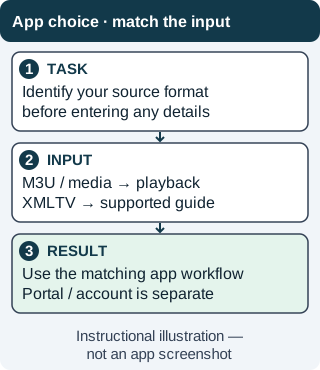
A source format is not just a different label for the same address. Portal and account workflows need explicit support. Instructional illustration — not an app screenshot. Original WispClub workflow diagram, CC BY-SA 4.0. Prove basic playback and navigation first
Action. Install one compatible app through its official route and load your authorized source using the matching device guide. Check two entries for picture and sound. Test the controls you will use every day: remote focus and back on a TV, touch and rotation on a phone, or playlist selection on a computer. Leave and reopen the app, keeping saved source details private. Compare a failed entry with a known-working permitted source rather than switching several settings at once.
Expected result. You have actual playback and navigation results for the chosen app on your device. If a source fails everywhere, check source access; if only this app/device fails, inspect compatibility and network behavior. Paying for premium controls cannot restore a revoked or expired source.
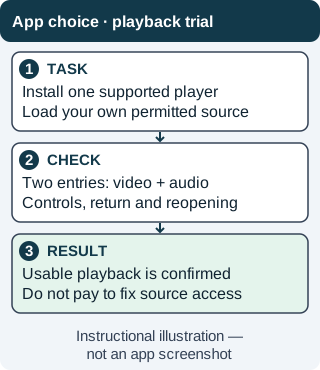
A first playback trial is a practical comparison criterion. Hardware photos or feature lists cannot replace it. Instructional illustration — not an app screenshot. Original WispClub workflow diagram, CC BY-SA 4.0. Test guide requirements and review the payment boundary
Action. If playback alone meets your needs, a supported free VLC route may be enough. If a schedule is essential, check explicit XMLTV support, configure the separate guide source and inspect channel-ID matching and time zone. Kodi with IPTV Simple is a free option on supported systems; TV-focused and native-TV alternatives have different platform and payment constraints. Review activation, subscription and privacy terms only after verifying the required functions. Keep software payment separate from the provider's authorized viewing access.
Expected result. You can explain why the selected app fits the device, source, controls and guide requirements. A working programme grid does not prove stream access, and an app licence supplies no channels. If either function is missing, identify that specific gap before trying a different player.
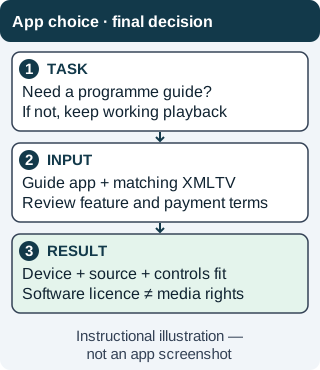
Choose based on verified requirements, not a promise that paying for software also buys content. Instructional illustration — not an app screenshot. Original WispClub workflow diagram, CC BY-SA 4.0.
Choose an app and complete a first playback test
- Identify the exact platform. Distinguish Android TV from tablet-style Android, Samsung Tizen from LG webOS, and Fire OS from Vega. Check the store on your device. Android APKs are not a universal installation method.
- Identify your source. An M3U lists media locations; XMLTV supplies schedule data. Xtream Codes and Stalker portal connections are different workflows. Match the app’s documented input support instead of pasting every address into a network-stream field.
- Choose playback or guide browsing. VLC is a free playback-first starting point. Kodi with IPTV Simple offers an XMLTV guide on supported devices. TiviMate is TV-focused; native Samsung and LG options have their own availability constraints.
- Install from an official route. Use the links below and confirm system requirements. Load only a source you are authorized to access. Keep private URLs and device identifiers out of public comments and screenshots.
- Test before paying. Check two playlist entries, audio, video, and navigation. If you need an EPG, test schedule matching separately. Paying for software cannot fix an unavailable source or grant media rights.
Match the setup route to the app
VLC: free, straightforward playback
Use official Android, iOS, or desktop downloads. Open an authorized network stream or supported local M3U. Windows uses Media, Open Network Stream; macOS uses File, Open Network. On Android phones, locate the installed version’s network-stream function without assuming a fixed menu path; the documented iOS 3.X route begins at Network and Open Network Stream. Labels vary. VLC is not an XMLTV guide.
Kodi: free playback with a separate EPG client
- Install a compatible build from Kodi. Under Add-ons, Install from repository, PVR clients, install or enable IPTV Simple Client. Version wording and Linux packaging can differ.
- Configure the M3U URL or file and the separate XMLTV URL or file. Match channel identifiers, save, reload, and open TV and Guide.
TiviMate: a TV-focused alternative
Check TiviMate’s official site for compatibility and terms. Add your own playlist and assign its EPG source. Some features may require payment. Do not assume a phone, desktop computer, or every Android box has a supported workflow.
Smart IPTV and SS IPTV: native TV routes
Smart IPTV’s Samsung documentation covers a Tizen 2019-and-newer store route, with model and region limits. Use its official playlist page for the device identifier and M3U/EPG upload, then restart. Paid device activation includes no channels; test first.
For supported LG TVs, check SS IPTV installation. Its playlist route is Settings, Content, External playlists, Add: name the playlist, enter its URL, save, and open the tile. Its EPG documentation specifies uncompressed XMLTV through x-tvg-url, recommends under 5 MB, and requires server CORS support.
Troubleshooting and compatibility checks
If playback fails, verify the address and compare the same source in VLC on another device. If only the guide fails, check XMLTV availability, matching channel IDs, and time zone. These are different problems.
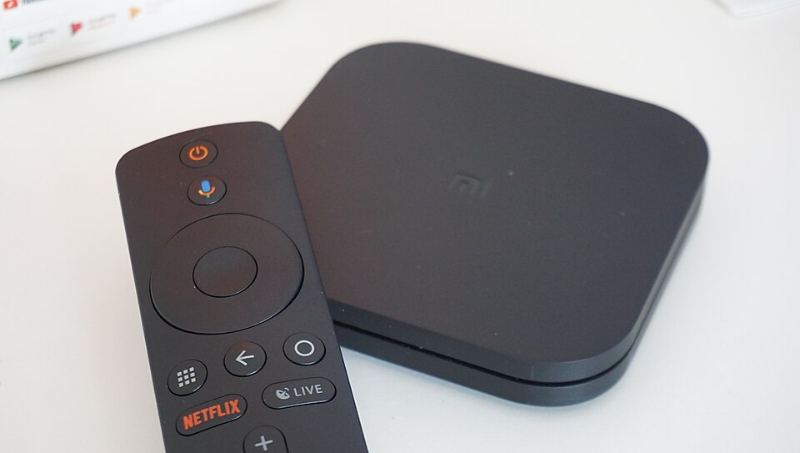
For Fire TV, consult Amazon’s OS overview. Fire OS is Android-based; Vega is different. Vega-native VLC, Kodi, and TiviMate installation is not verified here. Use a compatible app from the exact device store or a verified external player. Samsung Tizen and LG webOS do not accept Android APKs.
FAQ
Does buying a player include channels?
No. Software features and authorized media access are separate.
What if no native TV app works?
Consider a supported external device with free VLC or Kodi; verify compatibility before purchasing hardware.

