 Free IPTV Playlists
An Android phone can play an authorized IPTV source through VLC without a paid player purchase. Start with a working stream or playlist and a stable connection, then decide whether you need more advanced navigation. The steps below are for mobile Android, not a television interface. No channels, subscriptions, or access credentials are provided.
Visual walkthrough: Android phone source entry and mobile playback
Use the phone interface, a stable Wi-Fi connection and your own permitted source. The illustrations are original workflow diagrams, not captures of VLC; Android menu locations are intentionally not guessed from unrelated or placeholder documentation.
Follow the numbered actions and compare the expected result before continuing. In each original diagram, highlights 1–3 mean task, input/check, and result; they are not application buttons.
Install the official mobile player and prepare the source
Action. Open VideoLAN's Android download page linked below and use the official installation route supported by your phone. Check the publisher and Android version requirements, install and launch VLC. Prepare the complete authorized direct-stream or supported M3U address in a private place. Distinguish it from a website sign-in page, XMLTV schedule or Stalker portal. If the source requires an account method the app does not support, confirm a compatible authorized route with the provider.
Expected result. VLC launches on the phone and you know what source type you have. No channels are supplied by installation, and you should not need a modified package or unrelated device permissions to obtain them.
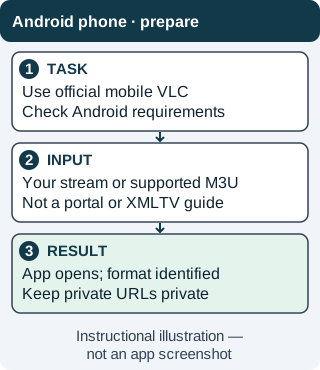
A verified app and a compatible authorized source are separate prerequisites. Neither a phone screenshot nor a player purchase establishes source access. Instructional illustration — not an app screenshot. Original WispClub workflow diagram, CC BY-SA 4.0. Find the stream function and enter the complete address
Action. Locate the network-stream or URL-opening function in your installed mobile VLC version. Labels and placement vary; use that release's help rather than a TV or desktop menu path. Paste your authorized source privately and check for missing characters, leading/trailing spaces and an incomplete scheme. Start the source using the available control. For a direct stream, look for playback; for a supported playlist, select one of the resulting entries. Do not submit the URL to a public testing site.
Expected result. The stream plays or the playlist exposes entries that can be tested. If you see a login page or an error instead, verify source type and account status before repeatedly changing app settings. Never expose access parameters in a help screenshot.
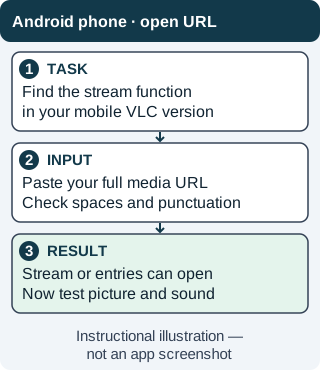
This is a functional route, not an invented Android menu. It stays usable when navigation labels differ across releases. Instructional illustration — not an app screenshot. Original WispClub workflow diagram, CC BY-SA 4.0. Optionally open a local playlist with limited file access
Action. Skip this step when the URL route works for your needs. Place the authorized M3U in a known local location, retain the original and use the phone's file-opening controls to open it with VLC if that format is supported by your installed release. Grant only the file access required. If the file is absent from the picker, check its actual location and file type; a renamed webpage is not a playlist. Select an entry and test it while connected to the network.
Expected result. VLC can access the chosen file and a supported playlist leads to playable media. A downloaded playlist does not make live streams available offline. If import succeeds but video fails, examine the referenced sources and account permissions rather than granting broader storage access.
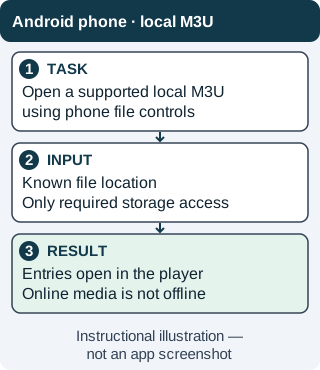
File visibility, playlist parsing and network playback are three different checks. Additional file permissions do not repair an expired stream. Instructional illustration — not an app screenshot. Original WispClub workflow diagram, CC BY-SA 4.0. Check touch controls, rotation and connection changes
Action. Play one authorized entry, confirm sound and picture, then test a second. Verify touch controls and rotation. Briefly switch apps and return; test screen-lock behavior if background use matters to you. Begin on Wi-Fi and check your allowance before cellular streaming. If playback stops only with the screen off, review VLC-related battery/background settings for your phone version and change only what is needed. If only one stream fails, compare it with a working stream first.
Expected result. You have a repeatable playback test and know whether interruptions affect this phone/source combination. If Wi-Fi works but cellular stalls, compare reception and available lower-quality sources. VLC does not display an XMLTV television grid; choose a separately verified mobile guide app only if that feature is required, not as a cure for network or account failures.
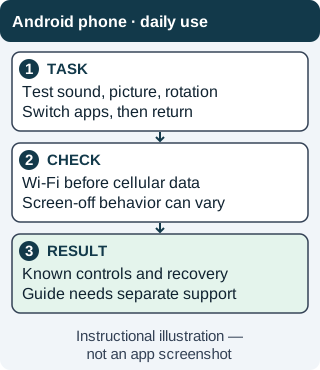
Mobile behavior depends on the phone, source and system restrictions. Test it instead of promising background or casting support. Instructional illustration — not an app screenshot. Original WispClub workflow diagram, CC BY-SA 4.0.
Install VLC and test your first stream
- Use the official download route. Visit VideoLAN’s VLC for Android page and follow the appropriate official installation link. Confirm the publisher and Android requirements for your phone. Avoid repackaged apps that advertise access to channels.
- Identify your source format. You need a direct media URL or an M3U playlist you are permitted to use. A web sign-in page, XMLTV schedule, or Stalker portal address is not a substitute. Keep the original source private and copy the full address carefully.
- Open a network stream. In mobile VLC, locate the network-stream or URL-opening function in your installed version; wording and location vary. Consult the help for that release rather than relying on a TV or desktop menu path. Paste your source URL and start playback. Do not expect Android TV screenshots to match the phone layout.
- Try a supported local M3U if needed. Open the playlist from a location VLC can access using the phone’s file controls. Grant only the file access required for that task. A downloaded M3U still needs reachable media locations; it does not make live video available offline.
- Verify the result. Check one entry for picture and sound, then try a second. Confirm that touch controls and rotation behave as expected. Live sources may not support seeking, recording, or replay, regardless of which controls appear.
- Plan for mobile use. Begin on Wi-Fi, then check your data allowance before using cellular service. Test what happens when the screen locks or you change apps; uninterrupted background playback is not guaranteed for every device and stream.
Separate playback from a programme guide
VLC is a free playback-first app, not an XMLTV guide. M3U entries point to media; XMLTV entries describe programme schedules. Importing an M3U therefore does not automatically produce a television-style grid, and pasting an XMLTV URL into a stream-opening field is not the way to add a guide.
If guide browsing matters, choose a mobile app that explicitly supports your source format and an XMLTV EPG. Check how it maps channel identifiers and handles guide refreshes. TiviMate is TV-focused, so do not assume it offers a suitable phone workflow just because the phone also runs Android.
Some alternative players charge for features. Check the terms and test compatibility before paying. Software payment does not include media access, guarantee a working playlist, or grant rights to view a source. The VLC route above does not require a player subscription.
Troubleshooting
The playlist will not load
Check missing characters, extra spaces, and whether the source is a playlist rather than a webpage. Try the same source in VLC on a computer. If both devices fail, investigate the source before resetting the phone or reinstalling the player.
Video buffers on mobile data
Compare the same entry on stable Wi-Fi. Move to better reception or select a lower-quality source when available. A fast connection test does not rule out congestion between your phone and the media server.
Playback stops when the screen turns off
Check the phone’s battery and background-app settings for VLC, but change only what you need. Behaviour can depend on the Android version and manufacturer. Do not assume every live source permits seamless background playback.
Audio plays without video
Compare another authorized stream and update VLC through its official route. A format or decoding limitation may affect one source even while others work. An empty EPG is a separate issue and cannot explain missing video.
FAQ
Does VLC provide channels?
No. You must supply a source you are authorized to play.
Can I use an XMLTV file as my playlist?
No. It contains schedule data, not the media locations required for playback.

